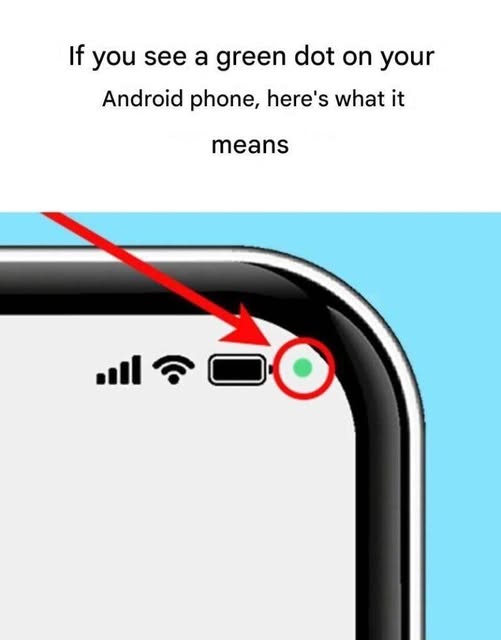
If you see a green dot on your Android phone, it’s not a glitch—it’s a privacy indicator introduced in recent Android versions. Here’s what it means:
What the Green Dot Means
- Camera or Microphone in Use: A green dot appears in the top-right corner of your screen whenever an app is actively using your camera or microphone.
- Privacy Feature: It’s Android’s way of letting you know when an app has access to sensitive sensors in real-time.
How to Check Which App is Using It
- Swipe down to open the Quick Settings / Notification panel.
- Look for a notification saying something like “Camera is being used by [App Name]”.
- You can tap the notification to see which app is currently accessing your camera or microphone.
Tips to Protect Your Privacy
- Review App Permissions: Go to Settings → Privacy → Permission Manager and check which apps can access your camera or microphone.
- Revoke Unnecessary Access: Remove permissions from apps that don’t need them.
- Use Physical Covers: Consider a camera cover if you’re concerned about unauthorized access.
💡 Pro Tip: This is similar to iPhone’s orange and green dot indicators, and it’s part of Android’s effort to make app activity more transparent.
I can also make a step-by-step guide to manage camera and microphone permissions on Android so you can be 100% sure no app is spying on you.
